Video
construction project management | How To Manage A Construction Project Step By Step
Construction project management is a complex discipline that involves coordinating multiple stakeholders...
TAMFIS NIG LTDRC 8067447CAC ACTIVEFinima, Bonny Island, Rivers State

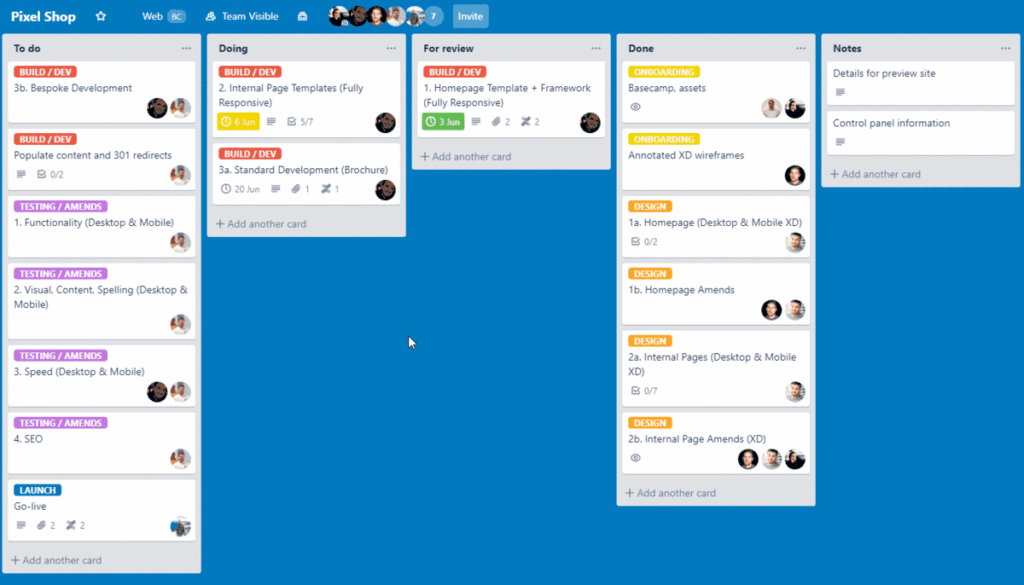
In today’s fast-paced work environment, effective project management tools are essential for team collaboration and productivity. Trello, a versatile and user-friendly platform, has become a popular choice for managing projects across industries. This 2021 tutorial provides a detailed guide on how to use Trello for project management, from setting up boards and lists to utilizing power-ups and automation. Whether you’re managing a small team or complex projects, mastering Trello can help you stay organized and deliver results on time.
Trello is a visual project management tool that uses boards, lists, and cards to represent projects, stages, and tasks respectively. This intuitive design mimics a physical whiteboard with sticky notes, making it easy for users to grasp and adapt quickly. Trello’s flexibility allows it to cater to various workflows, from simple to-do lists to complex project pipelines.
One of Trello’s key strengths is its collaboration features. Users can assign tasks, comment on cards, attach files, and set due dates, fostering transparent communication within teams. Additionally, Trello integrates with numerous third-party apps, enhancing its functionality and adapting to different project requirements.
The platform also incorporates automation via Butler, Trello’s built-in automation tool, which helps reduce repetitive tasks. This combination of visual simplicity and powerful features makes Trello a compelling choice for project management across diverse industries and team sizes.
Creating a Trello board is the first step to organizing your project. Begin by naming the board after your project or team to maintain clarity. Customize the background and visibility settings to suit your team’s preferences and privacy needs. Setting the board to private, team-visible, or public depends on the collaboration scope.
Next, organize your workflow by adding lists that represent different phases or categories, such as 'To Do,' 'In Progress,' and 'Done.' You can customize lists based on your project’s specific stages, like 'Backlog,' 'Review,' or 'Completed,' providing a clear visual workflow for all members.
After setting up lists, create cards within each list to represent individual tasks or action items. Cards can be moved across lists to reflect progress, making it easy to track project status at a glance. This structure promotes transparency and ensures everyone on the team is aligned with project goals.
Trello cards are the core units of task management. Each card can hold detailed information such as task descriptions, checklists, attachments, labels, due dates, and comments. This allows team members to have all relevant details in one place, reducing confusion and improving accountability.
Labels and color-coding help categorize and prioritize tasks visually. For example, red labels might indicate high-priority items, while green could denote completed tasks. This visual differentiation speeds up task identification and prioritization during team meetings or daily stand-ups.
Assigning members to cards ensures clear responsibility for each task. Team members receive notifications about updates or approaching deadlines, keeping them engaged and informed. Additionally, the comment feature facilitates real-time communication directly on the task, eliminating the need for separate email threads.
Trello promotes seamless collaboration by allowing teams to work together on shared boards. Members can be added to boards and cards, making it easy to delegate responsibilities and monitor progress collectively. This shared environment fosters transparency and accountability.
The activity feed on each board provides a chronological summary of all actions taken, such as card movements or comments, keeping everyone updated on project developments. This feature helps reduce miscommunication and ensures all team members are on the same page.
Moreover, Trello supports integrations with communication tools like Slack and Microsoft Teams, enabling notifications and updates directly within these platforms. This synchronization streamlines workflows and ensures that important project information is accessible wherever the team communicates.
Power-Ups are Trello’s add-ons that extend the platform’s functionality, allowing users to customize boards to fit their unique project needs. Popular Power-Ups include Calendar, which offers a visual timeline of due dates, and Custom Fields, which lets you add additional data points to cards.
Other useful Power-Ups include integrations with Google Drive for easy file sharing, and time-tracking tools like Harvest to monitor task durations. These enhancements transform Trello from a simple task board into a comprehensive project management hub.
While Trello offers a limited number of free Power-Ups per board, upgrading to a Business Class or Enterprise plan unlocks unlimited Power-Ups, advanced automation, and enhanced security features, making it suitable for larger teams and complex projects.
Butler is Trello’s built-in automation tool that helps reduce manual work by automating repetitive tasks. Users can create custom rules, buttons, and scheduled commands to streamline their workflows. For example, moving a card to the 'Done' list can automatically mark the due date complete and notify team members.
Automation can also include task assignments, label updates, and checklist creations triggered by specific actions. This reduces human error and ensures consistency across project processes, freeing up time for more strategic work.
Trello’s Butler feature is accessible on all plans, though more advanced automation capabilities are available with paid subscriptions. Implementing automation effectively can significantly enhance productivity and help teams focus on project deliverables.
To maximize Trello’s potential, establish clear board structures and naming conventions. Consistency in list and card titles helps teams navigate boards quickly and reduces confusion. For example, using uniform labels and checklist items ensures everyone understands task statuses uniformly.
Regularly update cards and encourage team members to comment and attach relevant files promptly. This keeps information current and accessible, facilitating better decision-making. Conducting periodic board reviews during team meetings can also help identify bottlenecks and adjust workflows accordingly.
Finally, leverage Trello’s reporting and export features to track progress and analyze project performance. Exporting board data to CSV or integrating with analytics tools enables managers to gain insights into team productivity and project timelines, supporting continuous improvement.
Trello offers a freemium model that caters to individuals and teams with varying needs. The free plan includes unlimited personal boards, cards, and lists, with basic Power-Ups and automation commands. It is ideal for small projects or personal task management.
The Business Class plan unlocks advanced features such as unlimited Power-Ups, enhanced automation with Butler, priority support, and greater security controls. This plan suits growing teams and organizations requiring more robust project management capabilities.
For large enterprises, Trello offers an Enterprise plan with additional administrative controls, single sign-on (SSO), and compliance certifications. Choosing the right plan depends on your team size, project complexity, and collaboration requirements, ensuring you get the best value from Trello.
Trello stands out as a flexible and powerful project management tool that adapts to diverse workflows and team sizes. By mastering its core components—boards, lists, cards, and collaboration features—alongside leveraging Power-Ups and automation, teams can significantly improve their project organization and delivery. Whether you’re managing a small project or coordinating a large team, Trello’s intuitive interface combined with its robust capabilities makes it a valuable asset for achieving project success in 2021 and beyond.
Keep reading
Video
Construction project management is a complex discipline that involves coordinating multiple stakeholders...
Video
Gantt charts are essential tools in project management, providing clear visual timelines that help teams...
Video
Project management is a dynamic and critical discipline that requires a blend of technical expertise, le...
TAMFIS NIG LTD
Electrical and instrumentation engineering, bid preparation and consulting, IT and software.