Apple's Find My app is a powerful tool designed to help users locate their devices and personal items, such as AirTags, using a vast crowdsourced Bluetooth network. Since its launch, Find My has expanded beyond Apple devices to include third-party trackers that utilize the same technology. However, situations arise when you need to remove an item from your Find My account—whether you lost the item, sold it, or no longer require tracking. This article provides a detailed, step-by-step guide on how to remove an item from Find My, explains the implications of removal, and offers practical advice to ensure your privacy and device security remain intact.
Understanding Find My and Its Item Tracking Features
Find My is Apple's integrated location service that helps users locate Apple devices and compatible third-party accessories. The app leverages Bluetooth technology and a crowdsourced network of Apple devices to pinpoint the location of items such as AirTags, iPhones, iPads, Macs, and more. This network enables accurate, secure, and private tracking, even when the item is offline or out of direct range.
AirTags, introduced by Apple in 2021, are small Bluetooth-enabled trackers designed to attach to personal belongings like keys, wallets, backpacks, or even pets. By pairing an AirTag with your Apple ID, you can monitor its location through the Find My app. Moreover, Apple has licensed this technology to third-party manufacturers, expanding the ecosystem and allowing devices like Chipolo and Pebblebee trackers to function within the Find My network.
While Find My offers significant convenience, it's important to understand the security implications of pairing items to your Apple ID. Paired items broadcast limited personal information to help identify ownership and prevent misuse. Consequently, when an item is lost or no longer in use, removing it from your account is crucial to protect your privacy and allow others to use the device if necessary.
Why You Should Remove Items from Find My
Removing an item from your Find My account is essential for several reasons. First, if you lose an AirTag or other Find My accessory, leaving it paired to your Apple ID means it continues to broadcast identifying information, such as a partial phone number, to anyone who finds it. This could inadvertently expose personal details or create privacy concerns.
Second, the Find My Lock feature prevents unauthorized users from pairing and using your AirTag or compatible tracker. This anti-theft mechanism is similar to Activation Lock on Apple devices, ensuring that only the original owner can disable or remove the item. If you intend to sell, gift, or give away a Find My item, removing it from your Apple ID is necessary to allow the new owner to pair it with their account.
Lastly, removing unused items helps keep your Find My app organized and reduces clutter. Managing your paired devices efficiently makes it easier to monitor active trackers and respond promptly if an item goes missing.
Step-by-Step Guide to Removing an Item from Find My
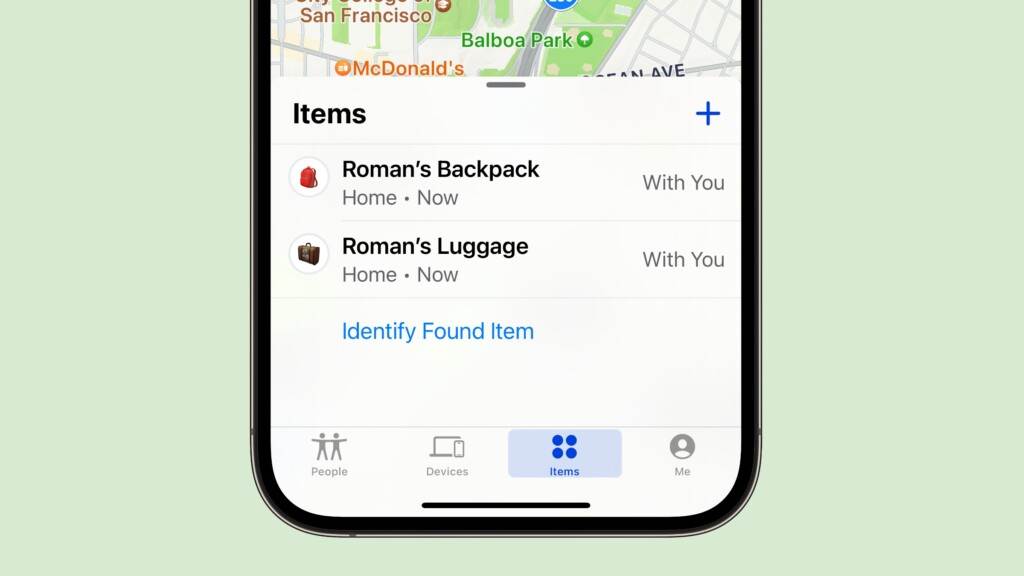
Removing an item from Find My can be completed using an iPhone, iPad, or iPod touch signed into the same Apple ID as the paired device. Unfortunately, Macs do not currently support unpairing Find My items. To start, open the Find My app on your iOS or iPadOS device and tap the 'Items' tab at the bottom of the screen to view your tracked devices.
Next, locate the item you want to remove from the list and tap on it to access its details. Scroll down to the bottom of the item's information page, where you will find the 'Remove Item' option. Tap on this button to initiate the removal process.
After tapping 'Remove Item,' you will be prompted to confirm your decision. Confirm by selecting 'Remove' again. This action disassociates the item from your Apple ID, effectively unpairing it and stopping location tracking through your account. If the item is within Bluetooth range, it will automatically reset, often accompanied by an audible confirmation (such as a tone from an AirTag). If it is out of range, the item remains linked until manually reset by the new user.
What Happens When You Remove an Item Out of Bluetooth Range
If the Find My item is not within Bluetooth range of your device when you remove it, the process only disassociates the item from your Apple ID remotely. The item itself will not reset automatically because it cannot communicate with your device to receive the reset command.
In this scenario, the item remains in a locked state, preventing unauthorized users from pairing it with their Apple ID. The new owner or finder must perform a manual reset procedure specific to the hardware to clear the previous owner's association. This often involves physical interaction with the device, such as pressing and holding buttons or removing batteries, depending on the manufacturer.
Once the manual reset is completed, the item can be paired again with a new Apple ID or compatible account. This two-step security mechanism ensures that lost or stolen items cannot easily be repurposed without the owner's consent, enhancing privacy and theft protection.
How to Reset and Reuse Find My Items After Removal
After successfully removing an item from your Find My account, especially if it was out of Bluetooth range during removal, resetting the device is necessary to prepare it for reuse. For AirTags, the reset process involves removing and reinserting the battery multiple times while pressing down on the battery compartment until the device emits a sound confirming the reset.
Third-party Find My-compatible trackers may have different reset procedures, so it's important to consult the manufacturer's instructions. This often includes steps like holding down a button for a set duration or removing the battery to trigger a factory reset. Performing the reset clears all previous associations and prepares the device for pairing with a new Apple ID.
Once reset, bring the item close to your iPhone or iPad. The device will detect the tracker and prompt you to pair it. Follow the on-screen instructions to complete the setup. This process ensures that the tracker is fully functional and associated with your current Apple ID, allowing you to monitor its location securely.
Troubleshooting Common Issues When Removing Items
Sometimes, users may encounter difficulties when attempting to remove an item from Find My. Common issues include the 'Remove Item' option being grayed out, failure to confirm removal, or the item still appearing after removal. These problems often arise due to connectivity issues, software glitches, or the device being out of range.
To troubleshoot, first ensure your iOS or iPadOS device is updated to the latest software version, as Apple frequently releases fixes for Find My-related bugs. Also, verify that Bluetooth is enabled and your device is connected to the internet, as removal requires communication with Apple's servers.
If the item is out of Bluetooth range, try bringing it closer before attempting removal. Additionally, restarting your device or signing out and back into your Apple ID can resolve temporary authentication problems. If issues persist, contacting Apple Support or the tracker manufacturer's customer service may provide further assistance.
Privacy and Security Considerations
When managing Find My items, it's important to be mindful of privacy and security implications. Paired items share limited personal information to help identify ownership and prevent misuse. Leaving a lost or unused item paired to your Apple ID can inadvertently expose details like a partial phone number to anyone who finds it, which can be a privacy risk.
Apple's Find My Lock acts as an anti-theft measure by preventing unauthorized users from pairing or using your devices without your Apple ID credentials. This lock remains in place until the item is removed from your account. Therefore, removing devices you no longer possess is crucial to ensure others can legitimately use the device and to prevent any potential misuse linked to your account.
Regularly reviewing and managing your Find My items helps maintain a secure digital environment. Removing lost, stolen, or unnecessary trackers promptly ensures that your personal information stays protected and that your Apple ID remains free from clutter.
Managing Third-Party Find My-Compatible Devices
In addition to Apple’s AirTags, several third-party manufacturers offer devices compatible with the Find My network, including brands like Chipolo and Pebblebee. These devices use the same Bluetooth-based crowdsourced network, allowing users to track their items seamlessly within the Find My app.
Removing third-party trackers from Find My follows a similar process to AirTags. However, the reset procedures may vary depending on the manufacturer. It’s advisable to consult the specific device’s user manual or support resources for detailed reset instructions after removing the item from your account.
Some third-party devices may also feature dedicated apps that facilitate management, including firmware updates and additional settings. Familiarizing yourself with these apps can enhance your experience and provide further control over your trackers within the Find My ecosystem.
Conclusion
Removing an item from Apple’s Find My app is a straightforward yet crucial process that protects your privacy, enhances security, and ensures your devices remain manageable. Whether you’ve lost an AirTag, sold a tracker, or simply no longer need it, following the correct steps to unpair and reset your device is vital. By understanding how Find My works, the importance of removal, and how to troubleshoot common issues, you can maintain control over your Apple ID and the devices linked to it. Stay proactive in managing your Find My items to enjoy a seamless and secure tracking experience.
Originally reported by macworld.com. Adapted for our readers.
Recent advances in machine perfusion technology are not only preserving donated livers but also making them biologically younger at a molecular level. This breakthrough…
What happens when human imagination, artificial intelligence, art and technology come together? From September 1 to 6, Samsung Electronics presented a special exhibition themed…