
Insights
How to Scope a Technology or Engineering Project Before You Request a Quote
Prepare a clear engineering or technology brief: define outcomes, scope, interfaces, budget, delivery constraints and acceptance checks.
TAMFIS NIG LTDRC 8067447CAC ACTIVEFinima, Bonny Island, Rivers State

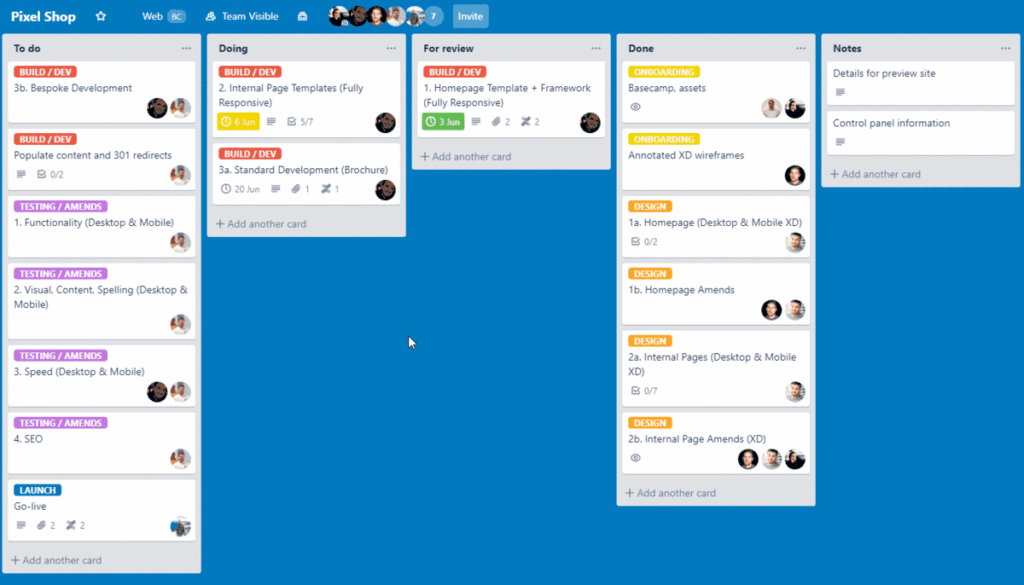
Trello has become one of the most popular project management tools for teams of all sizes, thanks to its simple interface and flexible features. Whether you're managing a small personal project or coordinating a complex team workflow, Trello’s visual approach to task organization can help you stay on track and improve collaboration. This 2021 tutorial will guide you through the essential steps to set up and use Trello effectively for project management, covering everything from board creation to advanced tips that maximize productivity.
Trello organizes projects using a visual system of boards, lists, and cards. Boards represent projects or major workstreams, providing an overview of the tasks involved. Inside each board, lists help categorize tasks or stages of the workflow, such as "To Do," "In Progress," and "Done." Cards are individual tasks or items that move across lists as progress is made.
This structure mimics a Kanban-style workflow, making it easy to visualize the status of different tasks at a glance. Each card can hold detailed information, including descriptions, checklists, due dates, attachments, and comments, allowing for comprehensive task management within a single interface.
Understanding this hierarchy is fundamental to using Trello effectively. It enables teams to break down complex projects into manageable parts and track progress visually, which reduces confusion and enhances team coordination.
Creating your first Trello board is straightforward and sets the foundation for your project management workflow. Begin by defining the project’s scope and objectives to determine the board’s purpose. Name the board clearly to reflect the project or department it serves for easy identification.
Next, create lists that correspond to the phases or categories relevant to your project. Common lists include "Backlog," "To Do," "In Progress," "Review," and "Completed." Tailor these lists to match your team’s unique process and terminology to maximize clarity.
After setting up lists, start adding cards for individual tasks or deliverables. Assign team members to cards, set due dates, and add any necessary attachments or checklists to provide detailed guidance. This initial setup helps streamline task allocation and accountability.
Trello offers several collaboration features that enhance team communication and transparency. Comments on cards allow members to discuss specific tasks without cluttering email inboxes. Notifications keep everyone updated on changes, deadlines, or responses, ensuring timely actions.
Labels and color-coding help categorize tasks by priority, department, or type, making it easier to filter and identify critical items. Integrating Trello with communication tools like Slack or Microsoft Teams further centralizes project discussions and reduces information silos.
Power-Ups, Trello’s add-ons, extend functionality by integrating calendars, time tracking, voting, and more. These features ensure your team stays aligned, informed, and engaged throughout the project lifecycle.
Automation in Trello, primarily through the Butler tool, allows you to create custom rules and commands to automate repetitive tasks. For example, you can set up rules to automatically move cards when due dates approach or assign members when a card is added to a specific list, saving valuable time.
Power-Ups enhance Trello’s native capabilities by integrating third-party apps such as Google Drive, Jira, or Salesforce. These integrations centralize project assets and data, reducing the need to switch between multiple platforms and improving workflow efficiency.
By leveraging automation and Power-Ups, teams can reduce manual work, minimize errors, and focus more on high-value project activities. Tailoring these tools to your project needs ensures maximum productivity and a smoother management process.
To get the most out of Trello, establish clear guidelines for board usage, including naming conventions, card details, and update frequency. Consistency helps team members understand the workflow and reduces miscommunication.
Regularly review and update boards during team meetings to reflect progress and adjust priorities. This practice keeps everyone aligned and encourages accountability. Using checklists within cards also ensures that subtasks are tracked and completed systematically.
Encourage team members to engage actively with Trello by commenting, attaching relevant documents, and updating task statuses. An interactive board becomes a central hub for project information, fostering transparency and collaboration.
Trello’s cloud-based platform is ideal for remote and hybrid teams, providing a shared space where all members can access project information anytime, anywhere. This accessibility bridges geographical gaps and supports asynchronous work styles.
Features such as real-time updates, notifications, and commenting facilitate ongoing communication without the need for constant meetings. Team members can track progress and contribute to discussions on their schedules, enhancing flexibility.
Additionally, Trello’s mobile app ensures that team members stay connected while on the move. By adopting Trello, remote teams can maintain cohesion, transparency, and productivity despite physical distances.
Tracking project performance is crucial for timely delivery and continuous improvement. Trello allows you to monitor task completion rates, deadlines, and bottlenecks through visual indicators and activity logs, providing insights into project health.
Using Power-Ups like dashboard views and reporting tools can generate charts and summaries that highlight key metrics such as task progress, workload distribution, and overdue items. These reports inform decision-making and resource allocation.
Regularly reviewing these metrics with your team helps identify areas for improvement and celebrate accomplishments. Trello’s reporting capabilities ensure that project managers stay informed and projects remain on track.
Trello’s flexibility extends through integrations with various productivity tools, creating a seamless workflow ecosystem. Connecting Trello with calendar apps like Google Calendar ensures deadlines and milestones are synchronized across platforms, reducing scheduling conflicts.
Integration with file storage services such as Dropbox and OneDrive simplifies document sharing and version control, maintaining easy access to essential project files directly from Trello cards.
Additionally, linking Trello with communication platforms or CRM systems centralizes information flow, eliminates duplicate data entry, and enhances overall operational efficiency. These integrations empower teams to work smarter and faster.
Trello stands out as a versatile and user-friendly project management tool that adapts to diverse workflows and team dynamics. By understanding its core components and leveraging its powerful features, teams can enhance collaboration, improve task tracking, and drive projects toward successful completion. Whether you’re new to project management or seeking a more visual and flexible solution, mastering Trello with this 2021 tutorial equips you with the knowledge to optimize your processes and achieve your project goals efficiently.
Keep reading
Insights
Prepare a clear engineering or technology brief: define outcomes, scope, interfaces, budget, delivery constraints and acceptance checks.
Educational Resources
Artificial Intelligence (AI) is...
Business News
In today’s fast-paced and highly competitive business environment, generic solutions no longer suffice. ...
TAMFIS NIG LTD
Electrical and instrumentation engineering, bid preparation and consulting, IT and software.