
Insights
How to Scope a Technology or Engineering Project Before You Request a Quote
Prepare a clear engineering or technology brief: define outcomes, scope, interfaces, budget, delivery constraints and acceptance checks.
TAMFIS NIG LTDRC 8067447CAC ACTIVEFinima, Bonny Island, Rivers State

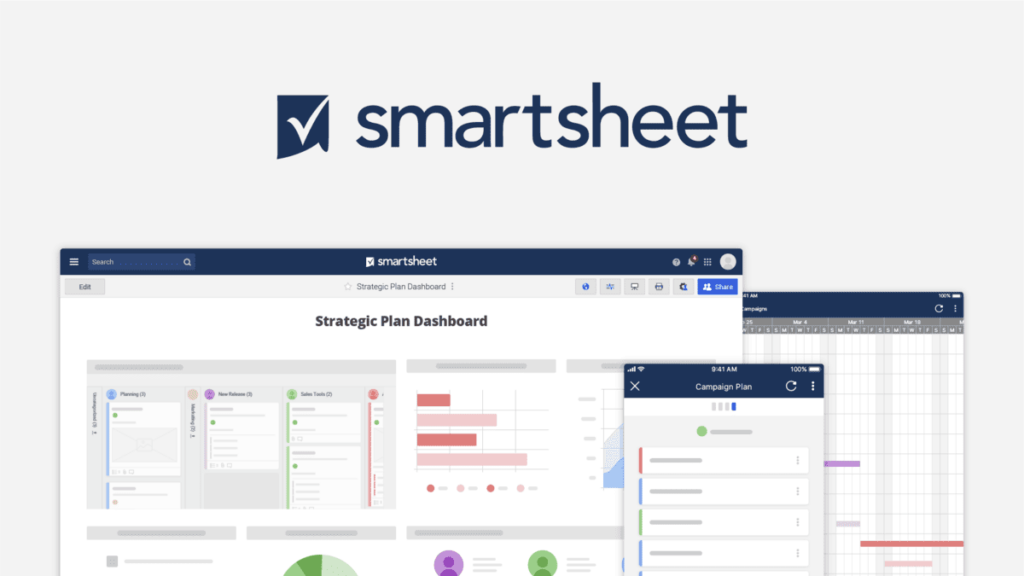
In the fast-paced world of project management, having a versatile and user-friendly tool is essential to keep teams aligned and projects on track. Smartsheet has emerged as a leading platform that combines the familiarity of spreadsheets with powerful project management capabilities. Whether you’re managing small tasks or complex projects, Smartsheet offers customizable solutions tailored to your needs. This article provides a detailed overview and tutorial on how to effectively use Smartsheet for project management in 2024, guiding you through its core features and best practices to maximize productivity.
Smartsheet is a cloud-based platform designed to facilitate work management and automation across diverse industries. It integrates traditional spreadsheet functionality with project management features like Gantt charts, calendars, and automated workflows. This hybrid approach makes it accessible for users familiar with Excel while offering advanced tools for collaboration and tracking.
Since its launch, Smartsheet has evolved into a comprehensive solution that supports project planning, resource management, reporting, and real-time collaboration. Its flexibility allows teams to customize sheets according to project requirements, making it ideal for both small businesses and large enterprises.
In 2024, Smartsheet continues to enhance its capabilities with integrations to popular apps such as Microsoft Teams, Slack, and Google Workspace, enabling seamless communication and data sharing. This makes it a powerful contender in the project management software space.
To begin using Smartsheet, start by creating an account on the Smartsheet website or through your organization’s subscription. Once logged in, you’ll have access to a dashboard where you can create new sheets, reports, and dashboards. The intuitive interface allows easy navigation between projects and tools.
For project management, the first step is to create a new sheet tailored to your project’s needs. You can choose from a variety of templates designed for project tracking, task management, and timelines. Selecting the right template helps streamline the setup process and ensures you capture essential project data.
After selecting or creating a sheet, familiarize yourself with the columns and rows. Columns can be customized to include task names, assignees, start and end dates, statuses, and priority levels. This customization is crucial for aligning Smartsheet with your project’s workflow and reporting requirements.
One of Smartsheet’s standout features is its Gantt chart view, which visually represents your project timeline. This feature helps identify task dependencies, critical paths, and potential bottlenecks, enabling proactive management. Users can easily adjust schedules by dragging tasks on the timeline.
Collaboration is enhanced through Smartsheet’s real-time commenting and attachment capabilities. Team members can discuss tasks directly within the sheet, share documents, and receive notifications on updates, improving communication and reducing email clutter.
Automation features in Smartsheet allow users to create workflows that trigger alerts, assign tasks, or update statuses based on specific conditions. This reduces manual work and ensures everyone stays informed about project progress and deadlines.
Task creation in Smartsheet is straightforward. Add tasks as rows within your sheet and populate relevant columns such as task owner, due date, and status. You can also add subtasks to break down complex activities into manageable steps, enhancing clarity and accountability.
Assigning tasks to team members is simple—just select the assignee column and choose the responsible person. Smartsheet integrates with email, so assigned users receive notifications and reminders to keep their workload on track.
Monitoring task progress is facilitated by status columns, which can be customized with labels like 'Not Started,' 'In Progress,' and 'Completed.' Conditional formatting can highlight overdue or at-risk tasks, allowing project managers to take corrective action promptly.
Effective project management depends heavily on communication, and Smartsheet offers multiple tools to support this. The comments section on each task allows users to discuss updates, ask questions, and share feedback, keeping all relevant information centralized.
Smartsheet also supports file attachments within sheets, enabling teams to store important documents alongside tasks. This eliminates the need to search through emails or external storage, ensuring everyone has access to the latest files.
Additionally, Smartsheet integrates with popular communication platforms like Slack and Microsoft Teams. These integrations allow notifications and updates to be pushed directly to team channels, fostering real-time collaboration and quick decision-making.
For project managers seeking advanced functionality, Smartsheet offers resource management tools to track workload and availability. This helps balance team capacity and avoid burnout by evenly distributing tasks based on individual bandwidth.
Reporting and analytics features allow managers to generate customizable reports that provide insights into project performance. These reports can include metrics like task completion rates, budget tracking, and timeline adherence, supporting data-driven decision-making.
Smartsheet’s integration with business intelligence tools such as Tableau and Power BI further enhances reporting capabilities. Managers can visualize project data in dynamic dashboards, making it easier to communicate progress to stakeholders.
To maximize Smartsheet’s potential, establish clear naming conventions and standardized templates for your projects. This consistency simplifies navigation and reduces errors when managing multiple projects simultaneously.
Regularly update task statuses and encourage team members to use comments and attachments to maintain transparency. This practice ensures that project information is current and accessible to all stakeholders.
Leverage Smartsheet’s automation features to minimize manual updates and reminders. Setting up alerts for approaching deadlines or changes in task status keeps the team proactive and reduces the risk of missed deliverables.
While Smartsheet is user-friendly, new users may encounter challenges during setup or customization. Fortunately, Smartsheet offers an extensive knowledge base with tutorials, FAQs, and best practice guides to assist users at all levels.
The Smartsheet Community is another valuable resource where users can ask questions, share solutions, and learn from experienced professionals. Engaging with the community can accelerate problem-solving and provide creative ways to use the platform.
For more complex issues, Smartsheet provides customer support through email and phone. Enterprise users often have access to dedicated account managers who offer personalized assistance, ensuring smooth project management operations.
Smartsheet stands out as a dynamic and powerful tool for project management in 2024, blending ease of use with advanced features to support teams of all sizes. By mastering its core functionalities—from task creation and collaboration to automation and reporting—project managers can streamline workflows, enhance communication, and drive projects to successful completion. Whether you are new to Smartsheet or looking to deepen your expertise, following this comprehensive tutorial will empower you to leverage the platform effectively and stay ahead in today’s competitive project management landscape.
Keep reading
Insights
Prepare a clear engineering or technology brief: define outcomes, scope, interfaces, budget, delivery constraints and acceptance checks.
Educational Resources
Artificial Intelligence (AI) is...
Business News
In today’s fast-paced and highly competitive business environment, generic solutions no longer suffice. ...
TAMFIS NIG LTD
Electrical and instrumentation engineering, bid preparation and consulting, IT and software.